MCP connectors for Claude, ChatGPT, Perplexity, Grok, Mistral & OpenClaw (2026)
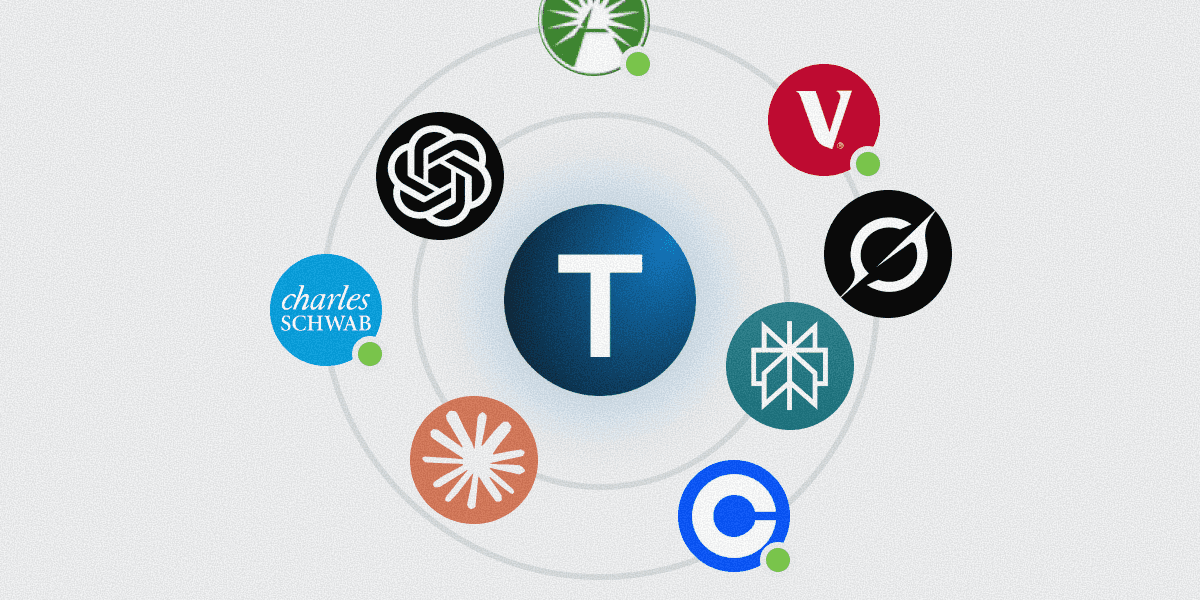

MCP connectors for Claude, ChatGPT, Perplexity, Grok, Mistral & OpenClaw (2026)
MCP connectors for Claude, ChatGPT, Perplexity, Grok, Mistral & OpenClaw (2026)
In this article
Are you tired of copying and pasting data between AI assistants and your actual work tools? If you’ve ever found yourself manually exporting spreadsheets, screenshotting dashboards, or typing out API responses just to get Claude or ChatGPT to analyze your real data, you’re experiencing the limitation that Model Context Protocol (MCP) was designed to solve.
MCP transforms AI assistants from isolated chatbots into connected partners that can read your files, query your databases, and interact with your business systems in real-time. Instead of working with stale data or generic responses, your AI can pull live information from the tools you use every day—giving you answers based on current reality, not months-old training data.
This comprehensive guide covers setup instructions for every major AI platform, troubleshooting for common issues, and real-world examples of what becomes possible when your AI has direct access to live data sources.
What is MCP and why does it matter?
Model Context Protocol is an open standard developed by Anthropic that creates secure, standardized connections between AI assistants and external tools. Think of it as "USB-C for AI" — a universal way to plug any AI assistant into any data source or business tool.
The Problem MCP Solves
Without MCP, the typical AI workflow looks like this:
Open your project management tool → copy issue details
Switch to your analytics dashboard → screenshot key metrics
Export data from your CRM → download CSV
Open Claude/ChatGPT → paste everything manually
Ask your question based on potentially stale data
Realize you need different data → repeat the entire process
With MCP, this becomes: Ask Claude "Analyze the performance impact of issues closed last week and show which ones affected our highest-value customers" — and get a real-time answer in seconds.
How MCP Works (Technical Overview)
MCP uses a client-server architecture where:
MCP Host: Your AI assistant (Claude, ChatGPT, etc.)
MCP Client: Protocol-level connector created by the host
MCP Server: Program that exposes your tool’s capabilities to AI
The protocol handles authentication, rate limiting, and security permissions automatically. When you ask Claude to check your GitHub issues, Claude calls the GitHub MCP server, which authenticates with your GitHub account, retrieves the requested data, and returns it in a structured format Claude can understand.
All actions require explicit user permission, ensuring you maintain full control over what your AI can access—no backdoor data sharing, no surprise connections.
Platform-by-Platform Setup Instructions
The following sections provide verified, step-by-step instructions for connecting MCP servers to every major AI platform. These instructions are based on official documentation and verified as of April 2026.
Claude (Free, Pro, Max, Team, Enterprise)
Source: https://support.claude.com/en/articles/11175166-get-started-with-custom-connectors-using-remote-mcp
Individual (Free / Pro / Max)
Navigate to
Customize > Connectors(URL alias:claude.ai/settings/connectors)Click the
+button next to Connectors → "Add custom connector"Enter Name:
Truthifi, URL:https://api.truthifi.com/mcp(Optional) Advanced settings → OAuth Client ID / secret if required by the server
Click "Add" — OAuth screen appears (if the server requires authentication), authorize with read-only scope
Per conversation: click
+→ Connectors → toggle Truthifi on
Team / Enterprise (owner first)
Owner:
Organization settings > Connectors→ "Add custom connector" → enter URL → AddMember:
Customize > Connectors→ find Truthifi → Connect → OAuth → toggle on per conversation
Key facts. Available on Free, Pro, Max, Team, and Enterprise. Free users are limited to one custom connector. The server must be reachable on the public internet (Anthropic’s cloud connects outbound — not from the user’s device). Feature is in beta as of April 2026.
ChatGPT (Plus, Pro, Business, Enterprise, Edu)
Source: https://help.openai.com/en/articles/12584461-developer-mode-and-full-mcp-connectors-in-chatgpt-beta (and https://platform.openai.com/docs/guides/developer-mode)
Plan gating (updated Dec 2025). Full, write-capable MCP connectors are restricted to Business / Enterprise / Edu workspaces. Plus and Pro individual users are limited to read/fetch-only custom MCP connectors even with Developer Mode enabled. Truthifi exposes read operations, so Plus/Pro users can still connect Truthifi successfully — the limitation affects write-capable tools, not data access tools.
Naming note (Dec 2025). OpenAI renamed "connectors" to "apps". The Settings section is now labelled Apps & Connectors.
Individual (Plus / Pro) — Developer Mode required first
Settings → Apps & Connectors → Advanced Settings→ enable Developer Mode (required prerequisite — without this, the custom connector option is not visible)Settings → Apps & Connectors→ "Create" (also seen as "Add custom connector")Enter Name:
Truthifi, URL:https://api.truthifi.com/mcp, Auth: OAuth → AddAcknowledge the custom MCP server risk notice
Complete OAuth authorization on Truthifi
Per conversation: Tools → Use apps → toggle Truthifi on
Workspace admin (Business / Enterprise / Edu)
Admin enables capability:
Workspace Settings → Permissions & Roles → Connected Data→ enable "Developer mode / Create custom MCP connectors"Admin publishes connector:
Workspace Settings → Connectors → Create→ Name:Truthifi, URL:https://api.truthifi.com/mcp→ PublishMember connects:
Settings → Apps & Connectors→ find Truthifi → Connect → OAuth → toggle on per session
Key facts. Developer Mode is a hard prerequisite for individual users and is in beta for Pro, Plus, Business, Enterprise, and Edu on the web. Business connectors are enabled by default once admin publishes. Enterprise/Edu connectors are disabled by default — admin must also configure RBAC. You verify that any custom MCP server is safe before publishing—you control the connection, not the platform.
Perplexity (Pro, Max, Enterprise — launched March 13, 2026)
Source: https://www.perplexity.ai/help-center/en/articles/13915507-adding-custom-remote-connectors
Account Settings → ConnectorsClick
+ Custom connector(top-right corner)In modal: select "Remote"
Enter Name:
Truthifi, URL:https://api.truthifi.com/mcpTransport: Streamable HTTP (auto-detected; SSE is the alternative)
Icon: optional upload field
Auth type: OAuth 2.0 (alternatives: None, API Key)
Check the risk acknowledgement → click Add
Click the connector card to complete OAuth
Key facts. Available on Pro, Max, and Enterprise. Launched March 13, 2026. Remote MCP server URLs must use HTTPS. Connectors can be scoped as Individual (private) or Organization (shared; admins can share org-wide). Enterprise admins can require per-member auth. The Transport and Icon fields have sensible defaults, so instructions that omit them still produce a working connection.
Are you tired of copying and pasting data between AI assistants and your actual work tools? If you’ve ever found yourself manually exporting spreadsheets, screenshotting dashboards, or typing out API responses just to get Claude or ChatGPT to analyze your real data, you’re experiencing the limitation that Model Context Protocol (MCP) was designed to solve.
MCP transforms AI assistants from isolated chatbots into connected partners that can read your files, query your databases, and interact with your business systems in real-time. Instead of working with stale data or generic responses, your AI can pull live information from the tools you use every day—giving you answers based on current reality, not months-old training data.
This comprehensive guide covers setup instructions for every major AI platform, troubleshooting for common issues, and real-world examples of what becomes possible when your AI has direct access to live data sources.
What is MCP and why does it matter?
Model Context Protocol is an open standard developed by Anthropic that creates secure, standardized connections between AI assistants and external tools. Think of it as "USB-C for AI" — a universal way to plug any AI assistant into any data source or business tool.
The Problem MCP Solves
Without MCP, the typical AI workflow looks like this:
Open your project management tool → copy issue details
Switch to your analytics dashboard → screenshot key metrics
Export data from your CRM → download CSV
Open Claude/ChatGPT → paste everything manually
Ask your question based on potentially stale data
Realize you need different data → repeat the entire process
With MCP, this becomes: Ask Claude "Analyze the performance impact of issues closed last week and show which ones affected our highest-value customers" — and get a real-time answer in seconds.
How MCP Works (Technical Overview)
MCP uses a client-server architecture where:
MCP Host: Your AI assistant (Claude, ChatGPT, etc.)
MCP Client: Protocol-level connector created by the host
MCP Server: Program that exposes your tool’s capabilities to AI
The protocol handles authentication, rate limiting, and security permissions automatically. When you ask Claude to check your GitHub issues, Claude calls the GitHub MCP server, which authenticates with your GitHub account, retrieves the requested data, and returns it in a structured format Claude can understand.
All actions require explicit user permission, ensuring you maintain full control over what your AI can access—no backdoor data sharing, no surprise connections.
Platform-by-Platform Setup Instructions
The following sections provide verified, step-by-step instructions for connecting MCP servers to every major AI platform. These instructions are based on official documentation and verified as of April 2026.
Claude (Free, Pro, Max, Team, Enterprise)
Source: https://support.claude.com/en/articles/11175166-get-started-with-custom-connectors-using-remote-mcp
Individual (Free / Pro / Max)
Navigate to
Customize > Connectors(URL alias:claude.ai/settings/connectors)Click the
+button next to Connectors → "Add custom connector"Enter Name:
Truthifi, URL:https://api.truthifi.com/mcp(Optional) Advanced settings → OAuth Client ID / secret if required by the server
Click "Add" — OAuth screen appears (if the server requires authentication), authorize with read-only scope
Per conversation: click
+→ Connectors → toggle Truthifi on
Team / Enterprise (owner first)
Owner:
Organization settings > Connectors→ "Add custom connector" → enter URL → AddMember:
Customize > Connectors→ find Truthifi → Connect → OAuth → toggle on per conversation
Key facts. Available on Free, Pro, Max, Team, and Enterprise. Free users are limited to one custom connector. The server must be reachable on the public internet (Anthropic’s cloud connects outbound — not from the user’s device). Feature is in beta as of April 2026.
ChatGPT (Plus, Pro, Business, Enterprise, Edu)
Source: https://help.openai.com/en/articles/12584461-developer-mode-and-full-mcp-connectors-in-chatgpt-beta (and https://platform.openai.com/docs/guides/developer-mode)
Plan gating (updated Dec 2025). Full, write-capable MCP connectors are restricted to Business / Enterprise / Edu workspaces. Plus and Pro individual users are limited to read/fetch-only custom MCP connectors even with Developer Mode enabled. Truthifi exposes read operations, so Plus/Pro users can still connect Truthifi successfully — the limitation affects write-capable tools, not data access tools.
Naming note (Dec 2025). OpenAI renamed "connectors" to "apps". The Settings section is now labelled Apps & Connectors.
Individual (Plus / Pro) — Developer Mode required first
Settings → Apps & Connectors → Advanced Settings→ enable Developer Mode (required prerequisite — without this, the custom connector option is not visible)Settings → Apps & Connectors→ "Create" (also seen as "Add custom connector")Enter Name:
Truthifi, URL:https://api.truthifi.com/mcp, Auth: OAuth → AddAcknowledge the custom MCP server risk notice
Complete OAuth authorization on Truthifi
Per conversation: Tools → Use apps → toggle Truthifi on
Workspace admin (Business / Enterprise / Edu)
Admin enables capability:
Workspace Settings → Permissions & Roles → Connected Data→ enable "Developer mode / Create custom MCP connectors"Admin publishes connector:
Workspace Settings → Connectors → Create→ Name:Truthifi, URL:https://api.truthifi.com/mcp→ PublishMember connects:
Settings → Apps & Connectors→ find Truthifi → Connect → OAuth → toggle on per session
Key facts. Developer Mode is a hard prerequisite for individual users and is in beta for Pro, Plus, Business, Enterprise, and Edu on the web. Business connectors are enabled by default once admin publishes. Enterprise/Edu connectors are disabled by default — admin must also configure RBAC. You verify that any custom MCP server is safe before publishing—you control the connection, not the platform.
Perplexity (Pro, Max, Enterprise — launched March 13, 2026)
Source: https://www.perplexity.ai/help-center/en/articles/13915507-adding-custom-remote-connectors
Account Settings → ConnectorsClick
+ Custom connector(top-right corner)In modal: select "Remote"
Enter Name:
Truthifi, URL:https://api.truthifi.com/mcpTransport: Streamable HTTP (auto-detected; SSE is the alternative)
Icon: optional upload field
Auth type: OAuth 2.0 (alternatives: None, API Key)
Check the risk acknowledgement → click Add
Click the connector card to complete OAuth
Key facts. Available on Pro, Max, and Enterprise. Launched March 13, 2026. Remote MCP server URLs must use HTTPS. Connectors can be scoped as Individual (private) or Organization (shared; admins can share org-wide). Enterprise admins can require per-member auth. The Transport and Icon fields have sensible defaults, so instructions that omit them still produce a working connection.
Grok (paid account required — launched April 3, 2026)
Source: No official xAI step-by-step documentation published as of April 2026. Path confirmed via community reporting; grok.com/manage-connectors requires login so UI text cannot be scraped without credentials. xAI developer docs at https://docs.x.ai/developers/tools/remote-mcp cover the API side.
Go to
grok.com→ menu → Connectors (or navigate directly tohttps://grok.com/manage-connectors)"Add custom connector"
Enter Name:
Truthifi, URL:https://api.truthifi.com/mcpComplete OAuth flow
Per conversation: toggle Truthifi on
Key facts. Requires a paid Grok account.
Mistral Le Chat (all plans including free — admin required for Teams)
Source: https://help.mistral.ai/en/articles/393572-configuring-a-custom-connector
Side panel → Intelligence → Connectors
Click
+ Add ConnectorClick "Custom MCP Connector" tab
Enter Connector name:
Truthifi(no spaces or special characters), Connection server URL:https://api.truthifi.com/mcp(Optional) Add a human-readable description
Auth method: select the method supported by your server (auto-detected OAuth for Truthifi)
Click Connect → complete OAuth
Per conversation: click Tools icon (four squares) → check Truthifi
Key facts. All plans including free — Free / Pro / Student users are admins by default. For team accounts, admins add connectors; members can then enable them per conversation. Admins can individually opt to always-allow specific functions exposed by the connector.
OpenClaw (open source — self-hosted)
Source: https://docs.openclaw.ai/cli/mcp · https://github.com/openclaw/mcporter
OpenClaw is the open-source AI agent runtime. Setup is a config-file edit (or a one-line CLI via the bundled mcporter skill), not a UI dialog. Two paths:
Path A — recommended: mcporter skill
Install:
npm install -g mcporterSearch and install:
mcporter search truthifithenmcporter install --target openclaw truthifi— the skill walks you through OAuth and registers Truthifi across all OpenClaw channels.If Truthifi is not yet in the searchable registry, fall back to Path B.
Path B — direct config edit
Edit
~/.openclaw/openclaw.jsonAdd Truthifi to the
mcpServersblock:
{
  "mcpServers": {
    "truthifi": {
      "type": "http",
      "url": "https://api.truthifi.com/mcp"
    }
  }
}
{
  "mcpServers": {
    "truthifi": {
      "type": "http",
      "url": "https://api.truthifi.com/mcp"
    }
  }
}
Save and restart the OpenClaw gateway.
The first OpenClaw call to Truthifi triggers the OAuth flow in your browser — sign in to Truthifi and grant scope.
Verify by asking OpenClaw: "Use Truthifi to show my current asset allocation."
Key facts. Free and open-source. Multi-channel by design — once Truthifi is registered, portfolio queries work across all OpenClaw channels (web, Discord, Telegram, or any custom channel). Reverse-proxy gotcha: if OpenClaw runs behind a reverse proxy, set MCP_ISSUER_URL to your public HTTPS URL, otherwise OAuth metadata advertises localhost and clients fail to authenticate.
Platforms Not Yet Supported
These platforms do not offer a consumer-facing MCP connector UI as of April 2026. Re-verify on each rebuild — consumer MCP support is expanding rapidly.
Platform | Status | Notes |
|---|---|---|
Gemini | Not supported | MCP available in Gemini Enterprise (Google Cloud, allowlist-gated) and Gemini CLI — no consumer UI |
Microsoft Copilot (M365) | Not supported | MCP exists in Copilot Studio but requires admin / developer setup via VS Code and M365 Agents Toolkit — no end-user UI |
Meta AI | Not supported | No MCP connector support in the consumer app; Meta’s MCP tooling is limited to Quest developer tools |
Amazon Q | Not supported | MCP support exists but is enterprise / AWS workspace — no consumer chat interface |
DeepSeek | Not supported | No consumer chat MCP connector UI; MCP servers exist as developer / API tools |
Troubleshooting Common Issues
When MCP connections fail, the issue usually falls into one of these categories. Here’s how to diagnose and fix each:
Authentication Errors
Problem: "Failed to authenticate with server"
Solution: Check that you’re using the correct MCP server URL with no trailing slash
Common mistake: Using
https://api.truthifi.com/mcp/instead ofhttps://api.truthifi.com/mcpIf it persists: Clear browser cache, disable ad blockers temporarily, try incognito mode
Problem: OAuth window opens but connection still shows disconnected
Solution: This is normal OAuth flow — after approving in the browser, return to your AI client
If still disconnected: Remove the connector, clear auth cache, and reconnect
Connection Timeout Issues
Problem: "Connection refused" or HTTP 400 errors
Check: MCP server URL has no typos
Corporate networks: VPN or firewall may be blocking outbound connections — try disabling temporarily
If using config files: Verify Node.js version 18+ is installed
Problem: Connection worked, now it doesn’t after laptop sleep
Solution: Many MCP bridges lose connection after network changes — restart your AI client
Prevention: Use native Connectors method instead of config files when available
Platform-Specific Issues
Each platform has its own quirks. Here are the most common platform-specific issues:
Claude Desktop:
Config file must be at exact path:
~/Library/Application Support/Claude/claude_desktop_config.json(macOS)Hidden folder access: Use Finder’s Go → Go to Folder (Cmd+Shift+G)
ChatGPT:
Developer Mode is hard requirement for Plus/Pro users
Check
Settings → Apps & Connectors → Advanced Settingsfirst
Windows users:
"spawn npx ENOENT" error means Node.js needs upgrading to version 18+
Environment variable expansion may need explicit APPDATA path
Real-world use cases: What becomes possible
Once you understand the mechanics, the question becomes: what can you actually do with live data access? Here are real workflows from different industries:
"AI assistants become exponentially more valuable when they can work with live data rather than stale exports."
For Financial Professionals
With Truthifi’s MCP integration, you can ask:
"Show me which of my clients have portfolios that dropped more than 5% this quarter and need rebalancing calls"
"Compare my asset allocation recommendations against current market conditions and regulatory changes"
"Generate a risk assessment for clients exposed to the tech sector based on their current holdings"
Learn more about connecting Claude to financial accounts or connecting ChatGPT to financial accounts.
For Content Marketers
With SEO tool MCP servers:
"Find keyword opportunities where we rank 11-20 that competitors aren’t targeting"
"Show me which blog posts lost traffic and what backlinks we need to recover"
"Analyze competitor content gaps for our top 5 product keywords"
For Software Development
With GitHub and monitoring MCP servers:
"Show me performance issues from last week’s deployment and create GitHub issues with stack traces"
"Find all PRs that touch authentication code and haven’t been security reviewed"
"Correlate user-reported bugs with recent deployments and suggest rollback candidates"
Security and Best Practices
With great connectivity comes great responsibility. Here’s how to use MCP safely:
"MCP uses your existing platform permissions — AI can access what you can access, nothing more."
Permission Management
Review scopes carefully: Grant access to data your AI actually needs—no more, no less
Regular audits: Check connected servers quarterly and remove unused ones
Team settings: For Enterprise plans, configure role-based access controls
Data Privacy Considerations
OAuth flows: MCP uses your existing platform permissions — AI can access what you can access, nothing more
Data transmission: All communication happens over HTTPS with standard OAuth2 security
Revocation: You can disconnect any MCP server instantly from your platform settings
Learn more about Truthifi’s security practices and data protection measures.
Rate Limiting and Costs
API quotas: Some MCP servers count against your existing tool quotas (e.g., GitHub API limits)
Cost monitoring: Usage-based tools like DataForSEO charge per API call — monitor usage in early days
Best practices: Ask specific questions rather than broad "analyze everything" requests
Advanced Configuration
Ready to go beyond basic setup? Here are advanced patterns for power users:
Multi-Server Setups
You can connect multiple MCP servers simultaneously:
Ahrefs + Google Search Console: Correlate keyword rankings with actual traffic
HubSpot + Slack: Get sales context while discussing deals in chat
GitHub + Sentry: Connect code changes with production errors
Enterprise Deployment
Managed configurations: Admins can deploy managed-mcp.json to control which servers employees can use Allow/deny lists: Restrict access to approved MCP servers Audit logging: Track which AI actions accessed which business systems
For enterprise implementations, see our B2B solutions and home office platforms.
Custom MCP Servers
If you have internal tools without existing MCP servers, you can build custom ones:
Use cases: Internal databases, proprietary APIs, legacy systems
Frameworks: Python (FastMCP), TypeScript (MCP SDK), Go, Rust
Resources: Official MCP documentation at
modelcontextprotocol.io
What’s Next for MCP
The MCP ecosystem is evolving rapidly. Here’s what’s coming:
Emerging Trends (2026)
Visual tools: MCP servers for design tools like Figma, Canva
Voice integration: MCP support in voice-based AI assistants
Mobile native: MCP connectors in iPhone/Android AI apps
Industry-specific: Healthcare, legal, manufacturing MCP ecosystems
Platform Roadmaps
Gemini consumer: Google is testing MCP in Bard/Gemini public beta
Microsoft integration: Copilot Studio features moving to consumer Copilot
Apple Intelligence: Rumored MCP support in iOS 18.2
For the latest updates on MCP developments, see our comprehensive guide to AI in finance and AI integrations.
Wrapping up
Conclusion
MCP represents a fundamental shift in how AI assistants work — from isolated chatbots to connected partners that can interact with your real business systems. The setup process takes minutes, but the capability unlocks fundamentally new workflows.
The key insight is this: AI assistants become exponentially more valuable when they can work with live data rather than stale exports. Instead of AI being a separate tool you consult, it becomes an extension of your existing workflow that can read, analyze, and act on the same data you work with daily.
Getting Started Checklist
✅ Choose your primary AI platform (Claude, ChatGPT, Perplexity, etc.)
✅ Identify your most-used business tools (CRM, analytics, project management)
✅ Check which have existing MCP servers (see platform directories)
✅ Start with one connection to learn the workflow
✅ Expand gradually as you discover new use cases
Next Steps
Browse available MCP servers in your AI platform’s connector directory
Join the MCP community to stay updated on new integrations
Share your use cases — help others discover what becomes possible
The difference between AI assistants that work with static knowledge versus live business data is the difference between a calculator and a financial analyst. MCP bridges that gap, transforming AI from a helpful tool into an indispensable partner.
Have questions about MCP setup or want to explore custom integrations? Contact our team for personalized guidance.
About the author: Scott Blandford is Founder & CEO of Truthifi, where he leads the company’s vision for transparent, AI-powered financial intelligence. Before founding Truthifi, Scott spent 25+ years in financial services, including senior roles at Fidelity Investments, Merrill Lynch, Bank of America, and TIAA, building the data infrastructure that institutions rely on to manage wealth at scale. He writes about the technology reshaping how people connect with and understand their financial lives.
Reviewed by Mike Young, Head of Product at Truthifi. Mike has 20+ years building digital investment platforms at Merrill Lynch, TIAA, JP Morgan, and Vanguard.
Related connect guides
Connect your AI to your real accounts and run an independent check using Truthifi.
Browse the full hub: All Truthifi Connect Guides
Available for ChatGPT · Claude · Perplexity · Grok · OpenClaw.
Frequently Asked Questions
What is Model Context Protocol (MCP)?
Model Context Protocol is an open standard developed by Anthropic that creates secure, standardized connections between AI assistants and external tools. Think of it as 'USB-C for AI' — a universal way to plug any AI assistant into any data source or business tool.
Which AI platforms support MCP connections?
Claude (all tiers), ChatGPT (Plus, Pro, Business, Enterprise), Perplexity (Pro, Max, Enterprise), Grok (paid accounts), and Mistral Le Chat (all plans) support MCP connections as of April 2026.
Is MCP secure for business data?
Yes, MCP uses OAuth 2.0 authentication and requires explicit user permission for each action. AI can only access what you can access, nothing more. All actions require explicit user permission, ensuring you maintain full control over what your AI can access.
Do I need a paid AI plan to use MCP connections?
It depends on the platform. Claude works with MCP on free, Pro, Max, Team, and Enterprise plans. ChatGPT requires Plus, Pro, Business, Enterprise, or Edu plans with Developer Mode enabled. Perplexity requires Pro, Max, or Enterprise plans. Grok requires a paid account.
Can I use Truthifi with self-hosted OpenClaw?
Yes. OpenClaw is open-source and self-hostable, and Truthifi works the same regardless of hosting. Setup is a config-file edit at ~/.openclaw/openclaw.json or via the bundled mcporter skill.
Does OpenClaw work with Discord and Telegram?
Yes. Once Truthifi is registered via mcporter or the mcpServers config block, portfolio queries work across all OpenClaw channels — web, Discord, Telegram, or any custom channel.
Grok (paid account required — launched April 3, 2026)
Source: No official xAI step-by-step documentation published as of April 2026. Path confirmed via community reporting; grok.com/manage-connectors requires login so UI text cannot be scraped without credentials. xAI developer docs at https://docs.x.ai/developers/tools/remote-mcp cover the API side.
Go to
grok.com→ menu → Connectors (or navigate directly tohttps://grok.com/manage-connectors)"Add custom connector"
Enter Name:
Truthifi, URL:https://api.truthifi.com/mcpComplete OAuth flow
Per conversation: toggle Truthifi on
Key facts. Requires a paid Grok account.
Mistral Le Chat (all plans including free — admin required for Teams)
Source: https://help.mistral.ai/en/articles/393572-configuring-a-custom-connector
Side panel → Intelligence → Connectors
Click
+ Add ConnectorClick "Custom MCP Connector" tab
Enter Connector name:
Truthifi(no spaces or special characters), Connection server URL:https://api.truthifi.com/mcp(Optional) Add a human-readable description
Auth method: select the method supported by your server (auto-detected OAuth for Truthifi)
Click Connect → complete OAuth
Per conversation: click Tools icon (four squares) → check Truthifi
Key facts. All plans including free — Free / Pro / Student users are admins by default. For team accounts, admins add connectors; members can then enable them per conversation. Admins can individually opt to always-allow specific functions exposed by the connector.
OpenClaw (open source — self-hosted)
Source: https://docs.openclaw.ai/cli/mcp · https://github.com/openclaw/mcporter
OpenClaw is the open-source AI agent runtime. Setup is a config-file edit (or a one-line CLI via the bundled mcporter skill), not a UI dialog. Two paths:
Path A — recommended: mcporter skill
Install:
npm install -g mcporterSearch and install:
mcporter search truthifithenmcporter install --target openclaw truthifi— the skill walks you through OAuth and registers Truthifi across all OpenClaw channels.If Truthifi is not yet in the searchable registry, fall back to Path B.
Path B — direct config edit
Edit
~/.openclaw/openclaw.jsonAdd Truthifi to the
mcpServersblock:
{
  "mcpServers": {
    "truthifi": {
      "type": "http",
      "url": "https://api.truthifi.com/mcp"
    }
  }
}
Save and restart the OpenClaw gateway.
The first OpenClaw call to Truthifi triggers the OAuth flow in your browser — sign in to Truthifi and grant scope.
Verify by asking OpenClaw: "Use Truthifi to show my current asset allocation."
Key facts. Free and open-source. Multi-channel by design — once Truthifi is registered, portfolio queries work across all OpenClaw channels (web, Discord, Telegram, or any custom channel). Reverse-proxy gotcha: if OpenClaw runs behind a reverse proxy, set MCP_ISSUER_URL to your public HTTPS URL, otherwise OAuth metadata advertises localhost and clients fail to authenticate.
Platforms Not Yet Supported
These platforms do not offer a consumer-facing MCP connector UI as of April 2026. Re-verify on each rebuild — consumer MCP support is expanding rapidly.
Platform | Status | Notes |
|---|---|---|
Gemini | Not supported | MCP available in Gemini Enterprise (Google Cloud, allowlist-gated) and Gemini CLI — no consumer UI |
Microsoft Copilot (M365) | Not supported | MCP exists in Copilot Studio but requires admin / developer setup via VS Code and M365 Agents Toolkit — no end-user UI |
Meta AI | Not supported | No MCP connector support in the consumer app; Meta’s MCP tooling is limited to Quest developer tools |
Amazon Q | Not supported | MCP support exists but is enterprise / AWS workspace — no consumer chat interface |
DeepSeek | Not supported | No consumer chat MCP connector UI; MCP servers exist as developer / API tools |
Troubleshooting Common Issues
When MCP connections fail, the issue usually falls into one of these categories. Here’s how to diagnose and fix each:
Authentication Errors
Problem: "Failed to authenticate with server"
Solution: Check that you’re using the correct MCP server URL with no trailing slash
Common mistake: Using
https://api.truthifi.com/mcp/instead ofhttps://api.truthifi.com/mcpIf it persists: Clear browser cache, disable ad blockers temporarily, try incognito mode
Problem: OAuth window opens but connection still shows disconnected
Solution: This is normal OAuth flow — after approving in the browser, return to your AI client
If still disconnected: Remove the connector, clear auth cache, and reconnect
Connection Timeout Issues
Problem: "Connection refused" or HTTP 400 errors
Check: MCP server URL has no typos
Corporate networks: VPN or firewall may be blocking outbound connections — try disabling temporarily
If using config files: Verify Node.js version 18+ is installed
Problem: Connection worked, now it doesn’t after laptop sleep
Solution: Many MCP bridges lose connection after network changes — restart your AI client
Prevention: Use native Connectors method instead of config files when available
Platform-Specific Issues
Each platform has its own quirks. Here are the most common platform-specific issues:
Claude Desktop:
Config file must be at exact path:
~/Library/Application Support/Claude/claude_desktop_config.json(macOS)Hidden folder access: Use Finder’s Go → Go to Folder (Cmd+Shift+G)
ChatGPT:
Developer Mode is hard requirement for Plus/Pro users
Check
Settings → Apps & Connectors → Advanced Settingsfirst
Windows users:
"spawn npx ENOENT" error means Node.js needs upgrading to version 18+
Environment variable expansion may need explicit APPDATA path
Real-world use cases: What becomes possible
Once you understand the mechanics, the question becomes: what can you actually do with live data access? Here are real workflows from different industries:
"AI assistants become exponentially more valuable when they can work with live data rather than stale exports."
For Financial Professionals
With Truthifi’s MCP integration, you can ask:
"Show me which of my clients have portfolios that dropped more than 5% this quarter and need rebalancing calls"
"Compare my asset allocation recommendations against current market conditions and regulatory changes"
"Generate a risk assessment for clients exposed to the tech sector based on their current holdings"
Learn more about connecting Claude to financial accounts or connecting ChatGPT to financial accounts.
For Content Marketers
With SEO tool MCP servers:
"Find keyword opportunities where we rank 11-20 that competitors aren’t targeting"
"Show me which blog posts lost traffic and what backlinks we need to recover"
"Analyze competitor content gaps for our top 5 product keywords"
For Software Development
With GitHub and monitoring MCP servers:
"Show me performance issues from last week’s deployment and create GitHub issues with stack traces"
"Find all PRs that touch authentication code and haven’t been security reviewed"
"Correlate user-reported bugs with recent deployments and suggest rollback candidates"
Security and Best Practices
With great connectivity comes great responsibility. Here’s how to use MCP safely:
"MCP uses your existing platform permissions — AI can access what you can access, nothing more."
Permission Management
Review scopes carefully: Grant access to data your AI actually needs—no more, no less
Regular audits: Check connected servers quarterly and remove unused ones
Team settings: For Enterprise plans, configure role-based access controls
Data Privacy Considerations
OAuth flows: MCP uses your existing platform permissions — AI can access what you can access, nothing more
Data transmission: All communication happens over HTTPS with standard OAuth2 security
Revocation: You can disconnect any MCP server instantly from your platform settings
Learn more about Truthifi’s security practices and data protection measures.
Rate Limiting and Costs
API quotas: Some MCP servers count against your existing tool quotas (e.g., GitHub API limits)
Cost monitoring: Usage-based tools like DataForSEO charge per API call — monitor usage in early days
Best practices: Ask specific questions rather than broad "analyze everything" requests
Advanced Configuration
Ready to go beyond basic setup? Here are advanced patterns for power users:
Multi-Server Setups
You can connect multiple MCP servers simultaneously:
Ahrefs + Google Search Console: Correlate keyword rankings with actual traffic
HubSpot + Slack: Get sales context while discussing deals in chat
GitHub + Sentry: Connect code changes with production errors
Enterprise Deployment
Managed configurations: Admins can deploy managed-mcp.json to control which servers employees can use Allow/deny lists: Restrict access to approved MCP servers Audit logging: Track which AI actions accessed which business systems
For enterprise implementations, see our B2B solutions and home office platforms.
Custom MCP Servers
If you have internal tools without existing MCP servers, you can build custom ones:
Use cases: Internal databases, proprietary APIs, legacy systems
Frameworks: Python (FastMCP), TypeScript (MCP SDK), Go, Rust
Resources: Official MCP documentation at
modelcontextprotocol.io
What’s Next for MCP
The MCP ecosystem is evolving rapidly. Here’s what’s coming:
Emerging Trends (2026)
Visual tools: MCP servers for design tools like Figma, Canva
Voice integration: MCP support in voice-based AI assistants
Mobile native: MCP connectors in iPhone/Android AI apps
Industry-specific: Healthcare, legal, manufacturing MCP ecosystems
Platform Roadmaps
Gemini consumer: Google is testing MCP in Bard/Gemini public beta
Microsoft integration: Copilot Studio features moving to consumer Copilot
Apple Intelligence: Rumored MCP support in iOS 18.2
For the latest updates on MCP developments, see our comprehensive guide to AI in finance and AI integrations.
Wrapping up
Conclusion
MCP represents a fundamental shift in how AI assistants work — from isolated chatbots to connected partners that can interact with your real business systems. The setup process takes minutes, but the capability unlocks fundamentally new workflows.
The key insight is this: AI assistants become exponentially more valuable when they can work with live data rather than stale exports. Instead of AI being a separate tool you consult, it becomes an extension of your existing workflow that can read, analyze, and act on the same data you work with daily.
Getting Started Checklist
✅ Choose your primary AI platform (Claude, ChatGPT, Perplexity, etc.)
✅ Identify your most-used business tools (CRM, analytics, project management)
✅ Check which have existing MCP servers (see platform directories)
✅ Start with one connection to learn the workflow
✅ Expand gradually as you discover new use cases
Next Steps
Browse available MCP servers in your AI platform’s connector directory
Join the MCP community to stay updated on new integrations
Share your use cases — help others discover what becomes possible
The difference between AI assistants that work with static knowledge versus live business data is the difference between a calculator and a financial analyst. MCP bridges that gap, transforming AI from a helpful tool into an indispensable partner.
Have questions about MCP setup or want to explore custom integrations? Contact our team for personalized guidance.
About the author: Scott Blandford is Founder & CEO of Truthifi, where he leads the company’s vision for transparent, AI-powered financial intelligence. Before founding Truthifi, Scott spent 25+ years in financial services, including senior roles at Fidelity Investments, Merrill Lynch, Bank of America, and TIAA, building the data infrastructure that institutions rely on to manage wealth at scale. He writes about the technology reshaping how people connect with and understand their financial lives.
Reviewed by Mike Young, Head of Product at Truthifi. Mike has 20+ years building digital investment platforms at Merrill Lynch, TIAA, JP Morgan, and Vanguard.
Related connect guides
Connect your AI to your real accounts and run an independent check using Truthifi.
Browse the full hub: All Truthifi Connect Guides
Available for ChatGPT · Claude · Perplexity · Grok · OpenClaw.
Frequently Asked Questions
What is Model Context Protocol (MCP)?
Model Context Protocol is an open standard developed by Anthropic that creates secure, standardized connections between AI assistants and external tools. Think of it as 'USB-C for AI' — a universal way to plug any AI assistant into any data source or business tool.
Which AI platforms support MCP connections?
Claude (all tiers), ChatGPT (Plus, Pro, Business, Enterprise), Perplexity (Pro, Max, Enterprise), Grok (paid accounts), and Mistral Le Chat (all plans) support MCP connections as of April 2026.
Is MCP secure for business data?
Yes, MCP uses OAuth 2.0 authentication and requires explicit user permission for each action. AI can only access what you can access, nothing more. All actions require explicit user permission, ensuring you maintain full control over what your AI can access.
Do I need a paid AI plan to use MCP connections?
It depends on the platform. Claude works with MCP on free, Pro, Max, Team, and Enterprise plans. ChatGPT requires Plus, Pro, Business, Enterprise, or Edu plans with Developer Mode enabled. Perplexity requires Pro, Max, or Enterprise plans. Grok requires a paid account.
Can I use Truthifi with self-hosted OpenClaw?
Yes. OpenClaw is open-source and self-hostable, and Truthifi works the same regardless of hosting. Setup is a config-file edit at ~/.openclaw/openclaw.json or via the bundled mcporter skill.
Does OpenClaw work with Discord and Telegram?
Yes. Once Truthifi is registered via mcporter or the mcpServers config block, portfolio queries work across all OpenClaw channels — web, Discord, Telegram, or any custom channel.
Disclaimer: This article is for educational purposes only and does not constitute financial, tax, or legal advice. It should not be construed as a personalized recommendation regarding any investment, financial advisor, or financial product. All calculations use hypothetical scenarios and historical return assumptions; actual results will vary. Past performance does not guarantee future results. Consult a qualified financial professional for guidance specific to your situation. Truthifi is an investment monitoring platform — not a financial advisor, broker-dealer, or tax professional. Truthifi does not manage assets, recommend investments, sell financial products, or provide personalized financial advice. Truthifi earns no revenue from advisor referrals, product commissions, or AUM fees. Statistics and data cited reflect publicly available sources current as of the article's publication date. Sources are linked throughout.
Disclaimer: This article is for educational purposes only and does not constitute financial, tax, or legal advice. It should not be construed as a personalized recommendation regarding any investment, financial advisor, or financial product. All calculations use hypothetical scenarios and historical return assumptions; actual results will vary. Past performance does not guarantee future results. Consult a qualified financial professional for guidance specific to your situation. Truthifi is an investment monitoring platform — not a financial advisor, broker-dealer, or tax professional. Truthifi does not manage assets, recommend investments, sell financial products, or provide personalized financial advice. Truthifi earns no revenue from advisor referrals, product commissions, or AUM fees. Statistics and data cited reflect publicly available sources current as of the article's publication date. Sources are linked throughout.
Disclaimer: This article is for educational purposes only and does not constitute financial, tax, or legal advice. It should not be construed as a personalized recommendation regarding any investment, financial advisor, or financial product. All calculations use hypothetical scenarios and historical return assumptions; actual results will vary. Past performance does not guarantee future results. Consult a qualified financial professional for guidance specific to your situation. Truthifi is an investment monitoring platform — not a financial advisor, broker-dealer, or tax professional. Truthifi does not manage assets, recommend investments, sell financial products, or provide personalized financial advice. Truthifi earns no revenue from advisor referrals, product commissions, or AUM fees. Statistics and data cited reflect publicly available sources current as of the article's publication date. Sources are linked throughout.
Ready to get started?
Stop living in spreadsheets.
$6,000,000,000+
Monitored
18,000+
Providers covered
Bank-grade
Security
features
Company
Legal
Stop living in spreadsheets.
$6,000,000,000+
Monitored
18,000+
Providers covered
Bank-grade
Security
features
Company
Legal
Stop living in spreadsheets.
$6,000,000,000+
Monitored
18,000+
Providers covered
Bank-grade
Security
features
Company
Legal